
Invoice TrayBeta

For freelancers and small businesses

Create invoices, track payments and work together. All in one place.

Prepare quotes and invoices, send them by email or through Peppol, and keep track of what's been paid. Manage expenses, emails, meetings, tasks and documents in the same workspace.

Explore features

From quote to payment, keep everything on track.

Keep quotes, invoices, payments and expenses connected, so you spend less time entering the same information twice.

Invoicing

Create and send professional invoices, faster.

Choose a customer, add your products or services and send your invoice. Your business details, payment terms, VAT rates and document design are ready to use.

  • Use different VAT rates on individual invoice lines.
  • Send by email, through Peppol or both, where supported.
  • Choose English, French or Dutch for each invoice PDF.
  • Manage recurring invoices, credit notes and an item catalogue.
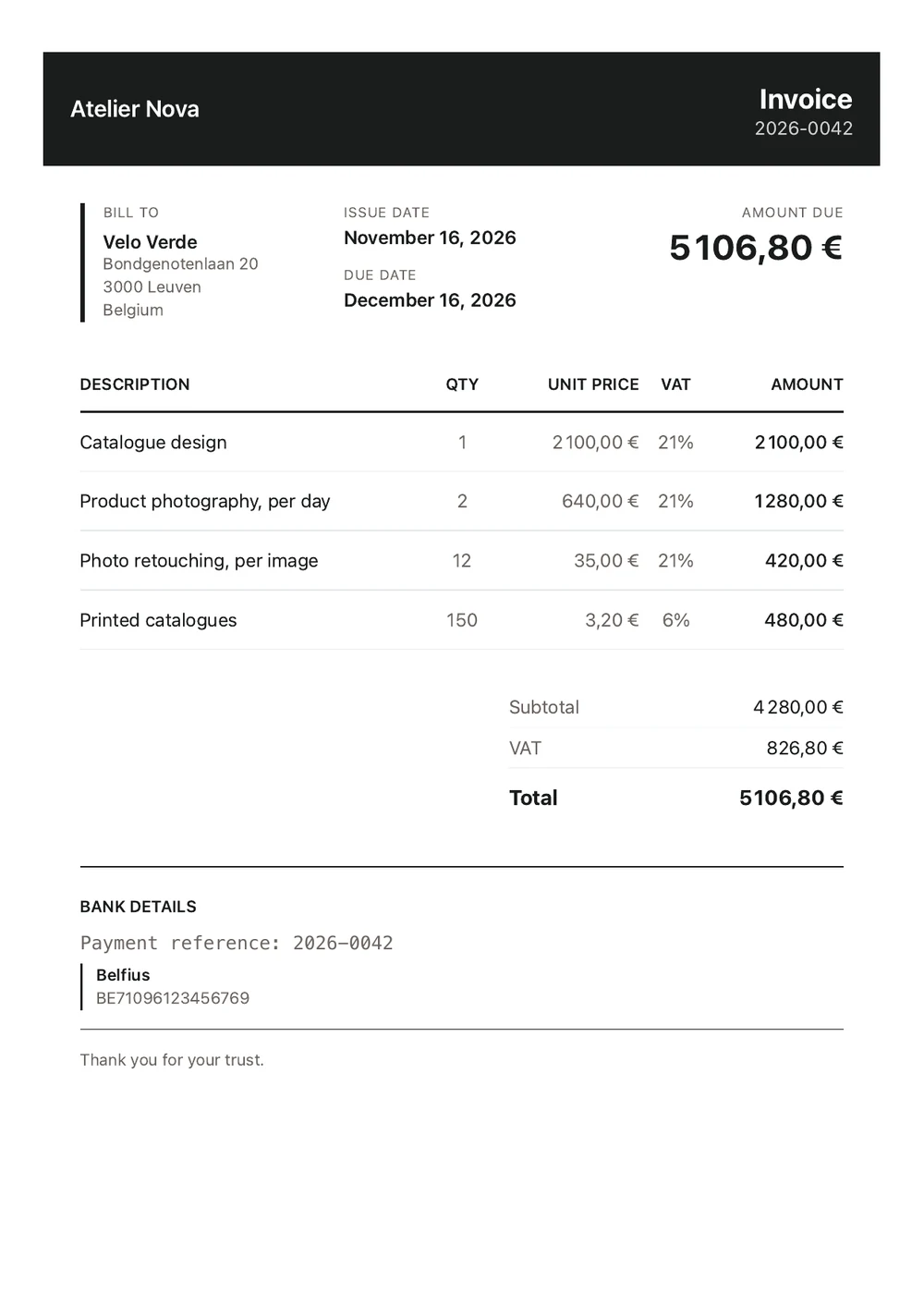
Explore invoicing
Preview of a customer invoice PDF
An invoice, from draft to payment
  1. Draft

    Items, VAT and design

  2. Sent

    Email, Peppol or both

  3. Opened

    16 Nov, 09:12

  4. Paid

    €5,106.80

Quotes

Send quotes and get client approval online.

Set out your work and prices before a project begins. Clients can review, accept or decline a quote online without creating an account.

  • Send a PDF with a link to view and respond to the quote.
  • See when a quote was opened and receive a notification when a client replies.
  • Turn an accepted quote into a draft invoice in one click.
  • Use your own numbering and branding.
Explore quotes
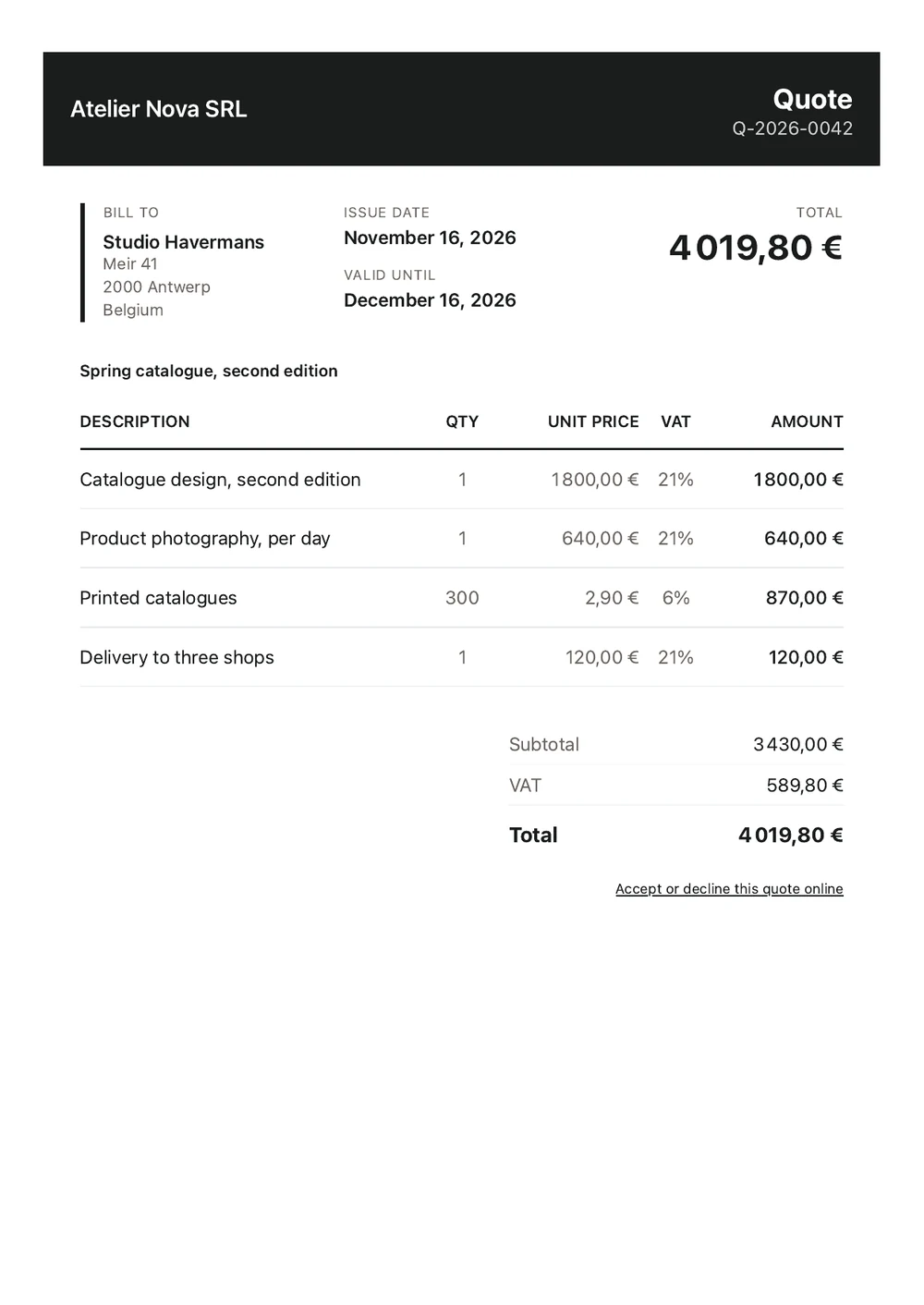
Preview of a quote PDF awaiting customer approval
From quote to invoice

Quote sent

Email with PDF

Client review

No account required

Draft invoice

Items, VAT and notes carried over

Payment reminders

Follow up on unpaid invoices, on schedule.

Set the timing and wording of your reminders once. Invoice Tray sends them according to your schedule and stops when the invoice is recorded as paid.

  • Schedule reminders before, on or after the due date.
  • Set a minimum unpaid balance to avoid unnecessary reminders.
  • Pause reminders for individual invoices.
  • Track email opens and PDF downloads when tracking is enabled.
Explore payment reminders
An example reminder schedule
  1. 15 NovInvoice sent, 30-day payment terms
  2. 12 DecReminder three days before the due date
  3. 15 DecPayment due
  4. 22 DecReminder seven days overdue
  5. Payment recordedReminders stop
  6. Next reminderNot sent

Banking

See which invoices have been paid.

Connect your bank account to bring transactions into Invoice Tray. Review suggested matches, link incoming payments to invoices and record outgoing payments as expenses.

  • Match suggestions based on names, IBANs and payment references.
  • Record a payment on the right invoice once you approve the match.
  • Create expenses from outgoing bank transactions.
  • Connect through Bridge without sharing your banking credentials with Invoice Tray.
Explore banking
From bank transaction to business record

Money received

+€2,299.00

Velo Verde

Suggested match

Invoice 2026‑0015

Invoice marked as paid

Reminders stop

Money sent

-€726.00

Drukkerij Peeters

Create expense

Supplier identified

Expense recorded

Linked transaction

Expenses

Keep every expense and receipt together.

Record expenses manually, from bank transactions or from supplier invoices received through Peppol. Keep the supporting document attached to each expense.

  • Receive supplier invoices through Peppol, including available PDFs.
  • Create an expense from a supplier invoice and identify the supplier.
  • Organise spending with your own categories and supplier references.
  • Keep bank transactions linked to the expenses created from them.
Explore expenses
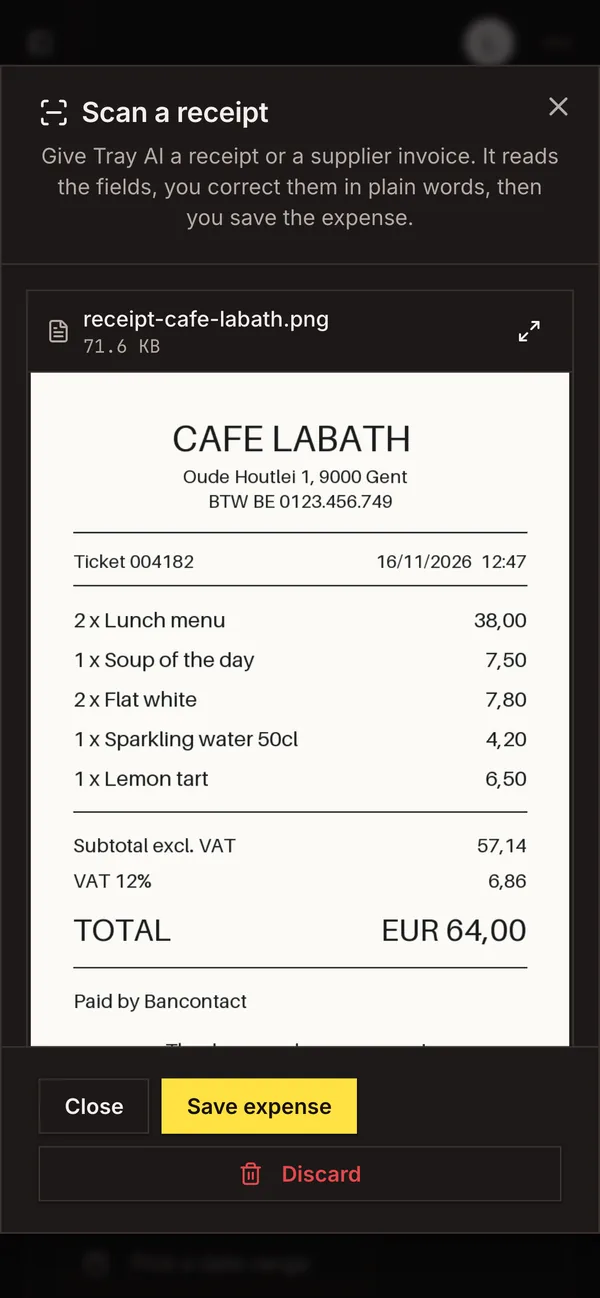
Receipt displayed alongside extracted expense details
Different sources, one expense record

Manual entry

Scanned receipt

Bank transaction

Supplier invoice via Peppol

Expense

Supplier, category, VAT and receipt

Receipt scanning

Scan a receipt. Review a pre-filled expense.

Upload a receipt or supplier invoice as an image or PDF. Tray AI extracts the information and prepares an expense for you to check before saving.

  • Fields that need checking are clearly flagged.
  • Correct details in everyday language, such as "The total is €48.50".
  • Keep the receipt attached to its expense in Documents.
  • Get a warning about potential duplicate receipts or expenses.
Explore receipt scanning
From receipt to expense

Read by Tray AI

Supplier
Cafe Labath
Date
16 Nov 2026
Total including VAT
€64.00
VAT
€6.86 (12%)
Category
MealsNeeds review

Save expense

Tray AI

Ask questions about your business data.

Find out which invoices are overdue, how much a client owes or which expenses were recorded. Tray Bot can also prepare invoice drafts for you to review.

  • Ask about unpaid invoices, outstanding balances and recorded VAT.
  • Describe an invoice in plain English and review the draft.
  • Nothing is emailed until you approve the client, amount and recipient.
  • Answers are limited to the data you can access in your current workspace.
Explore Tray AI
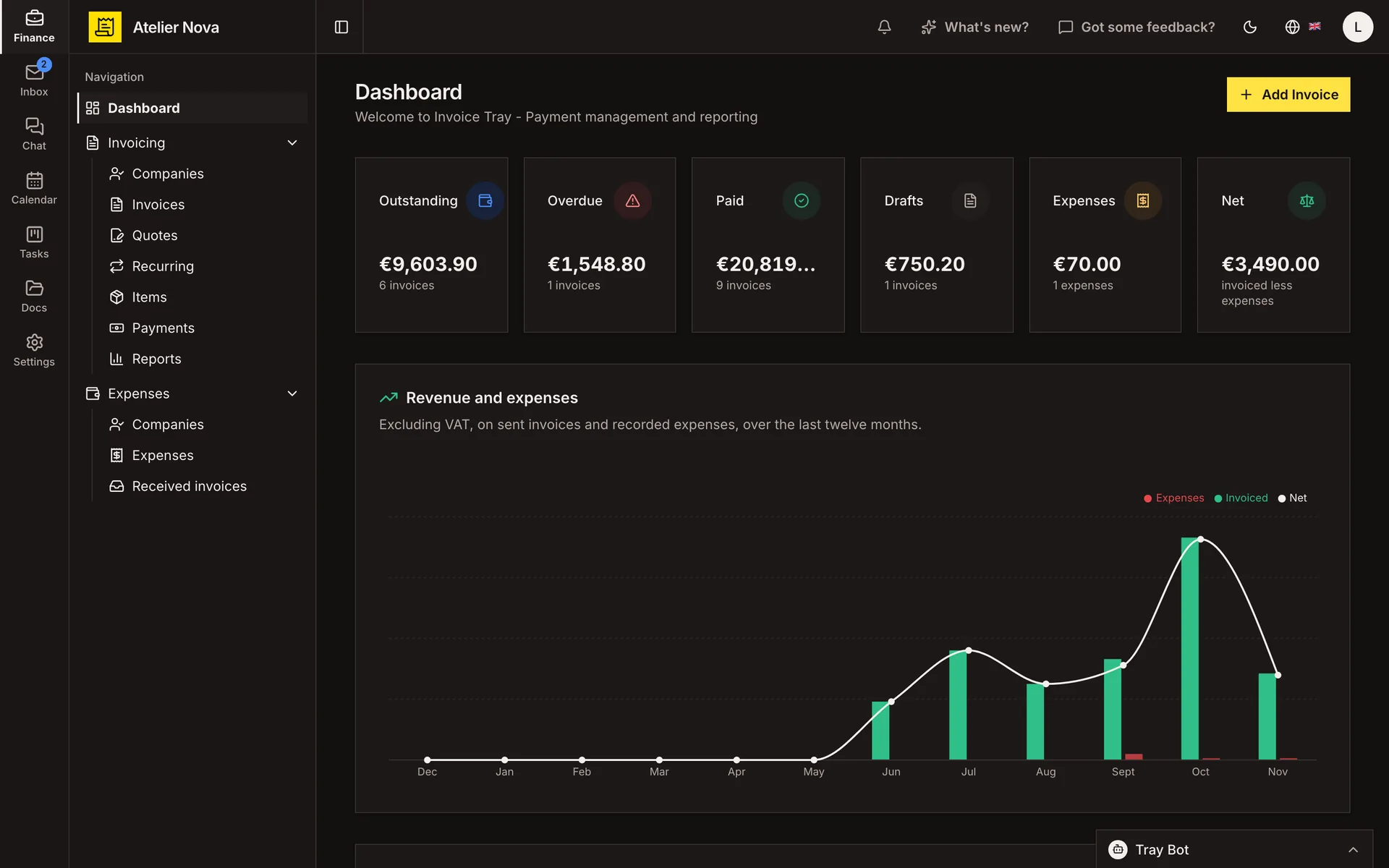
Answers based on your workspace data

Which invoices are overdue, and how much is still outstanding? One invoice is overdue, and €9,603.90 is still outstanding in total. Overdue, 1 invoice: €1,548.80. Not yet due, 5 invoices: €8,055.10.

Keep your team's work in one place.

Email, meetings, conversations, tasks and files stay connected to your clients and invoices, in one shared workspace.

Shared inbox

Manage business email as a team.

Bring shared addresses such as info@ or accounts@ into one inbox. Assign messages, reply as a team and connect conversations to customers, invoices or expenses.

  • Assign emails to teammates and add internal comments.
  • Turn a customer email into a draft invoice or a task.
  • Save attachments directly to Documents.
  • Use filters to organise incoming mail and Tray AI to draft replies.
Explore the shared inbox
One email, several next steps

Customer email

Arrives in the shared inbox

Assign to teammate

Prepare invoice

Create task

Save attachment

Calendar

Plan meetings without switching tools.

Send invitations from your connected business mailbox. Guests can reply from the calendar or email tools they already use, and you can track their responses in Invoice Tray.

  • Day, week, month and agenda views, with recurring meetings.
  • Create a meeting from an email conversation.
  • Guests can reply through a link without an account.
  • Subscribe to your schedule in Google, Outlook or Apple Calendar in read-only mode.
Explore calendar
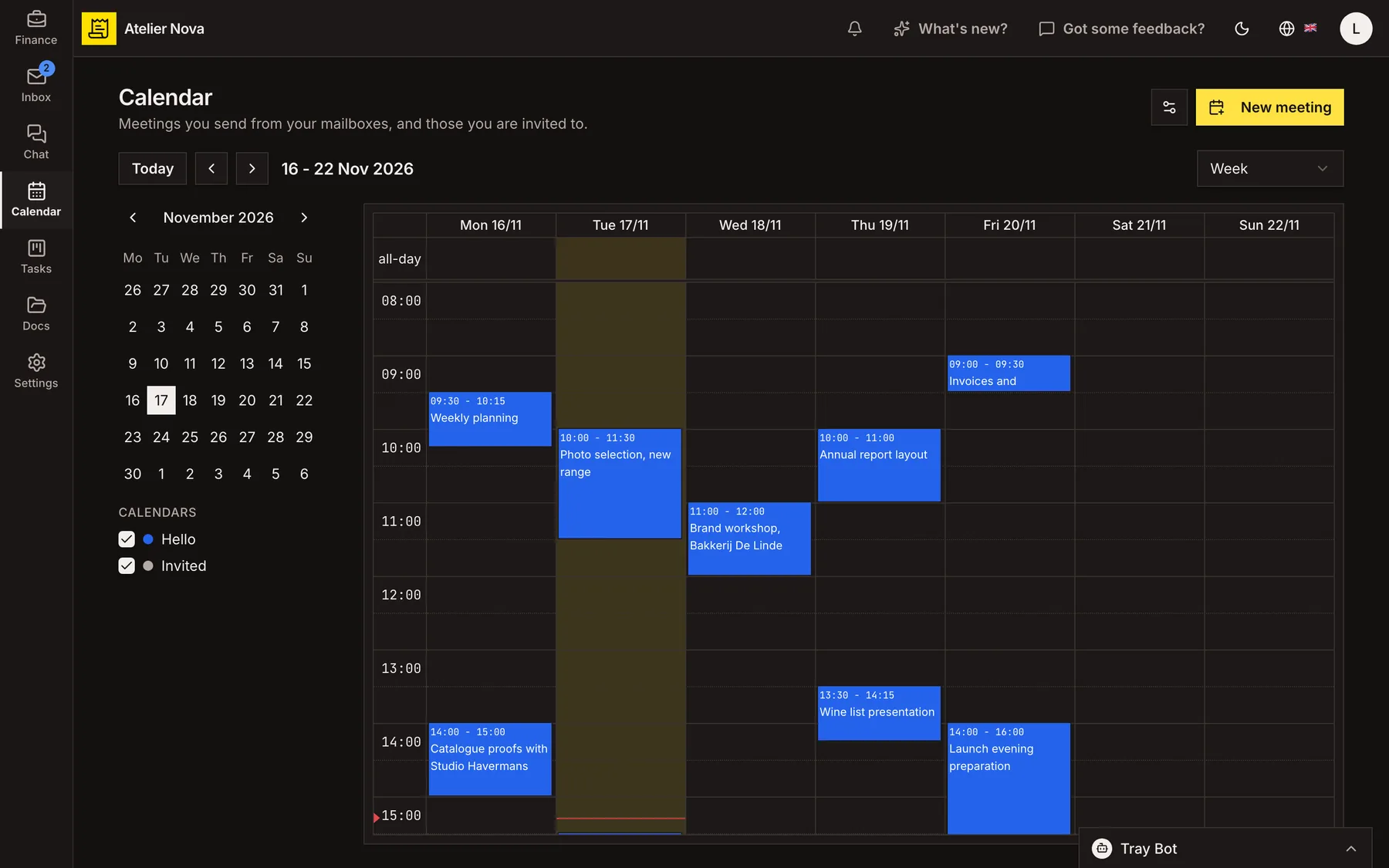
Weekly calendar with multiple scheduled meetings
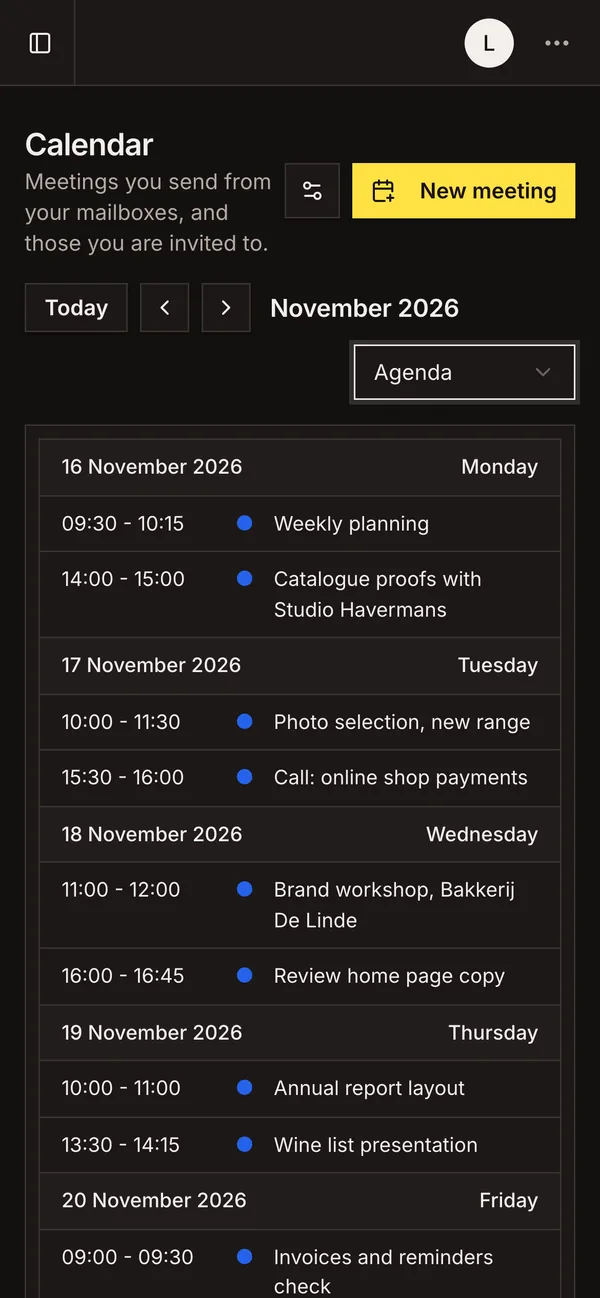
Calendar, on a smartphone

Team chat

Keep team conversations close to the work.

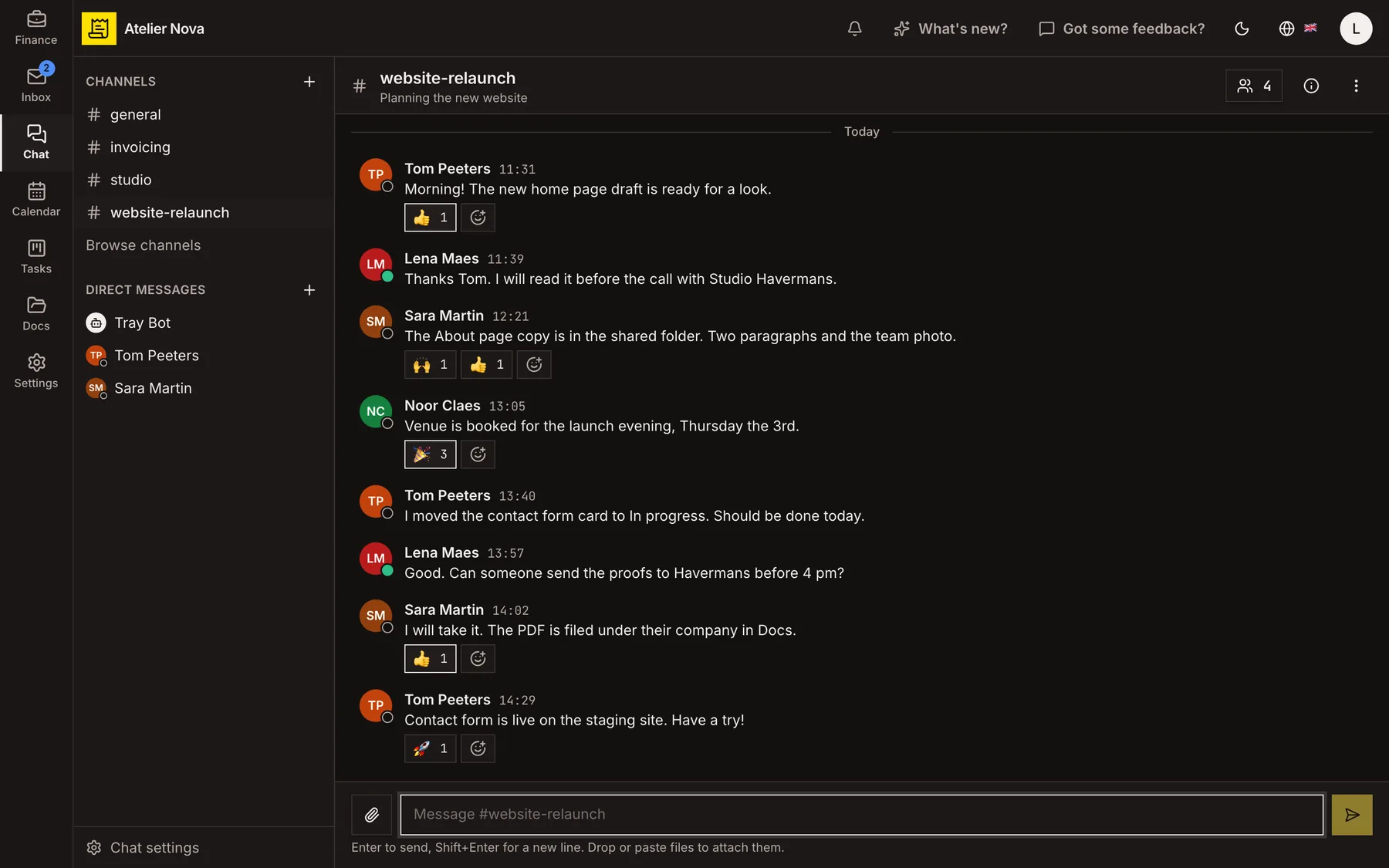
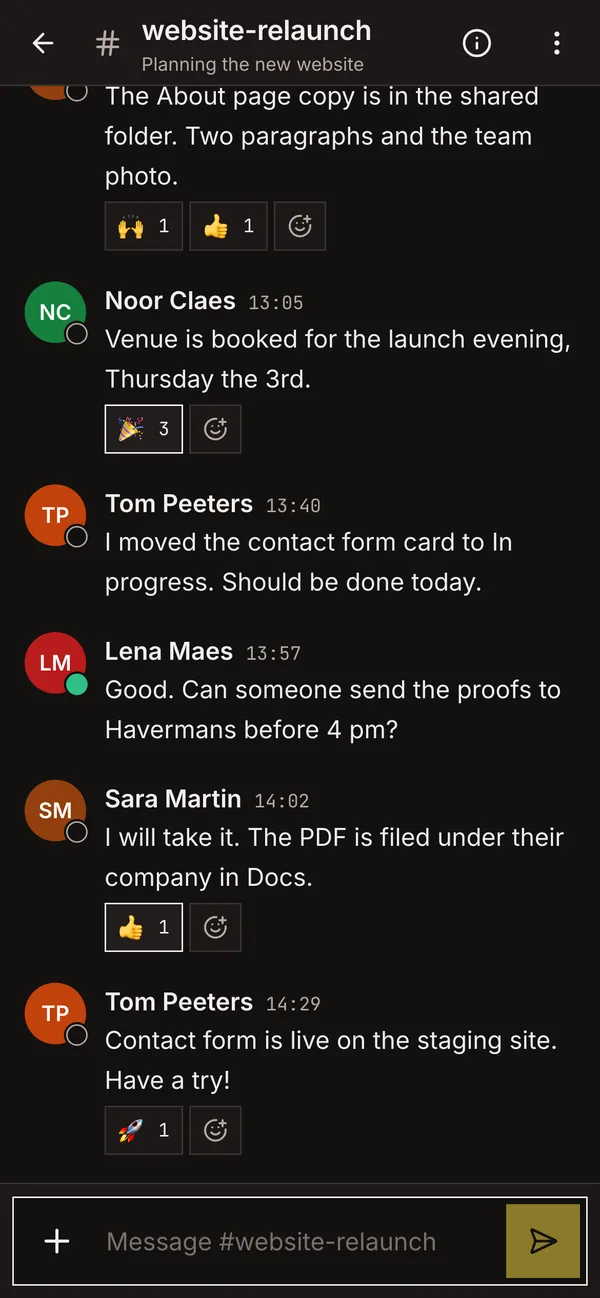
Use channels and direct messages without leaving the invoices, customers and tasks you are working on. On desktop, chat remains accessible as you move between pages.

  • Public and private channels, replies, forwarding and reactions.
  • Share up to 10 files in a message, with image and PDF previews.
  • See availability and typing indicators.
  • Receive notifications based on the device you are using.
Explore team chat
Team channel with messages, attachments and reactions
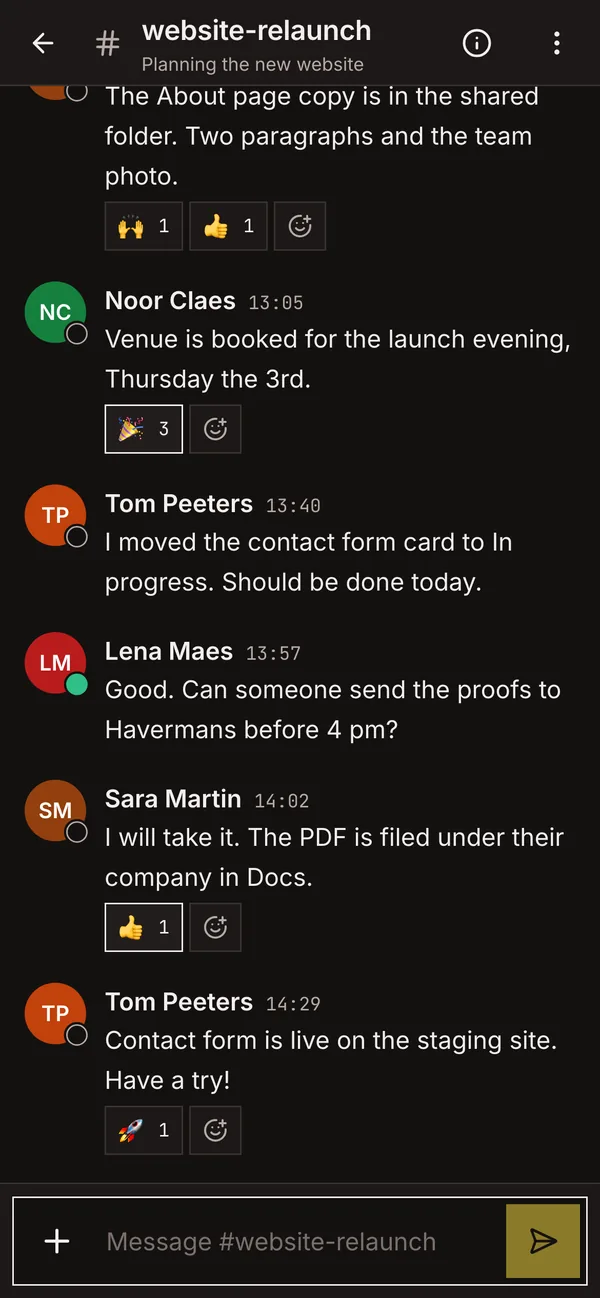
Team chat, on a smartphone

Tasks and boards

Give every task a clear next step.

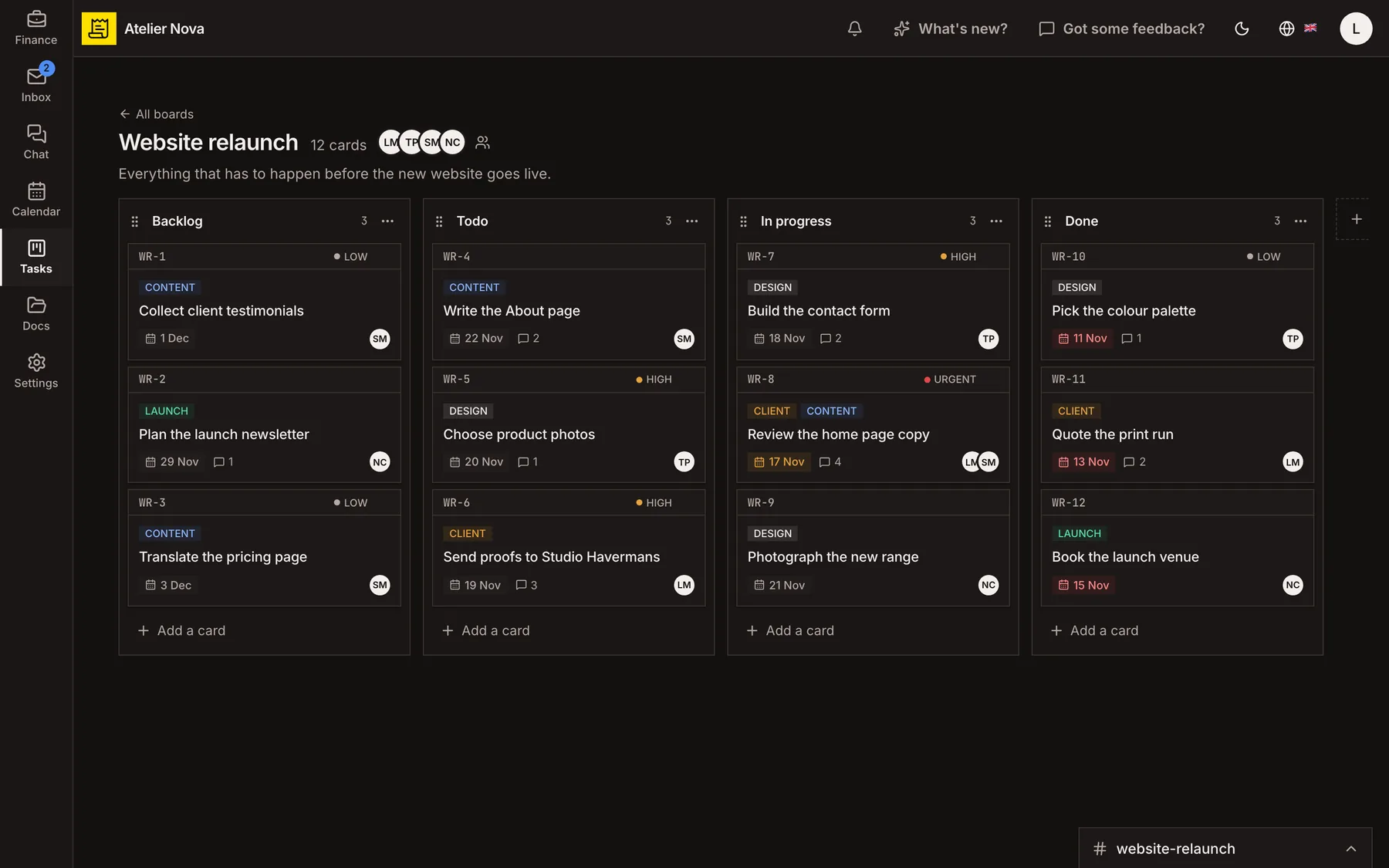
Assign tasks, set deadlines and follow progress on shared boards. Turn emails that need action into cards, without losing the original conversation.

  • Include descriptions, attachments, comments, priorities, labels and due dates.
  • Create private boards or set access by role.
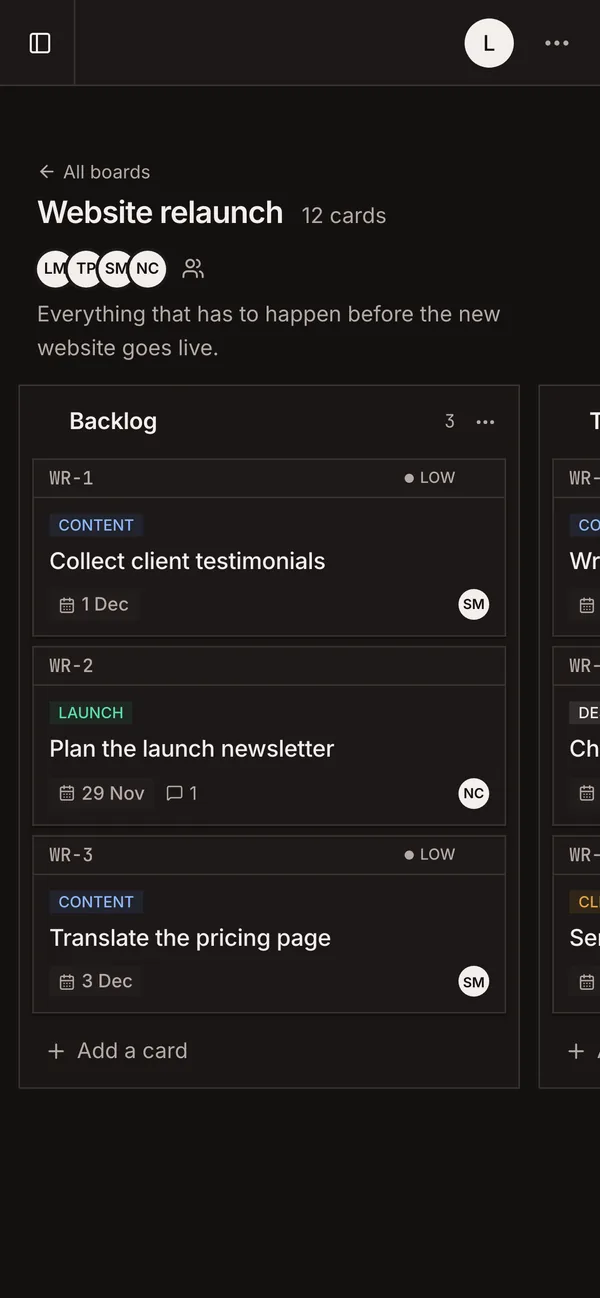
  • Swipe between board columns on mobile.
  • Give board-only users direct access to their tasks.
Explore tasks and boards
Task board with cards in several progress columns
Tasks and boards, on a smartphone

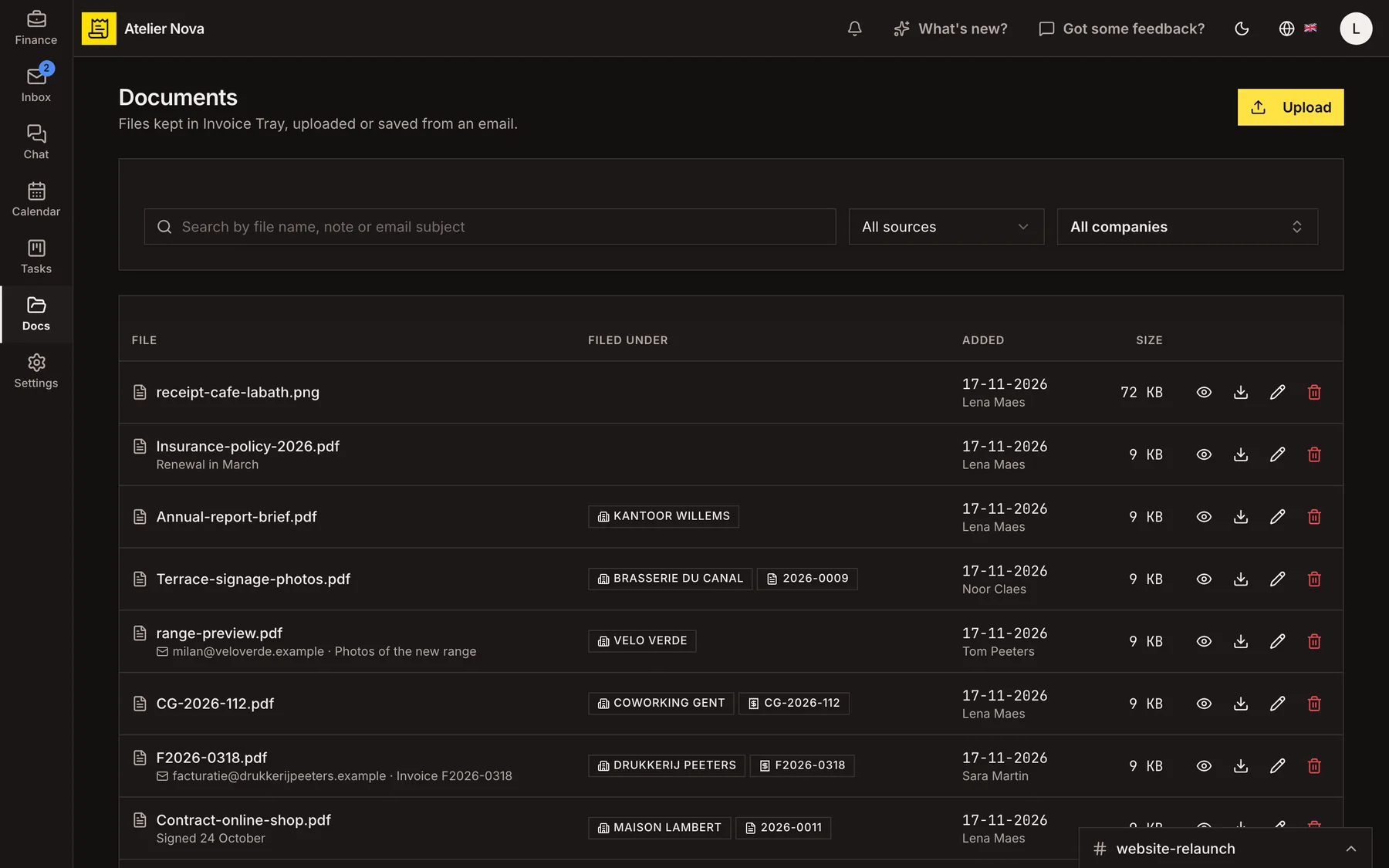
Documents

Find every document in the right place.

Keep contracts, receipts and supplier invoices organised. Link them to a business, invoice or expense so authorised colleagues can find what they need.

  • Upload files up to 20 MB or save attachments from email.
  • Attach stored documents when composing an email.
  • Keep supplier PDFs received through Peppol.
  • Search by filename, note or email subject.
Explore documents
Document list showing files linked to businesses and invoices
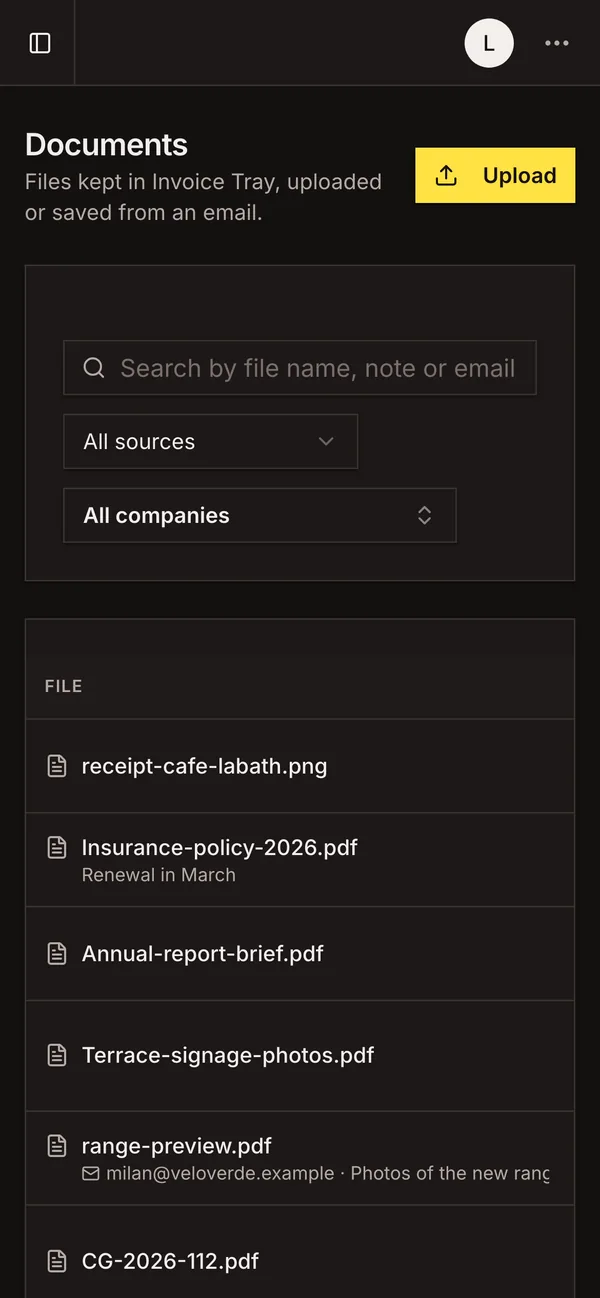
Documents, on a smartphone

Manage multiple businesses with one account.

Keep separate details and invoice settings for each business. View figures separately or together, and invite teammates or your accountant with the access they need.

Settings for each business

Keep VAT numbers, addresses, invoice preferences and bank accounts separate.

A combined view

Choose which businesses to include when you view records and totals together.

Simple team invitations

Invite teammates or your accountant by email, each with their own sign-in.

Access for every role

Choose which sections and actions each person can use.

Clients, suppliers and items are shared across businesses in the same workspace.

Send and receive e-invoices through Peppol.

Connect your business to Peppol during setup. Send structured e-invoices to eligible customers, receive supplier invoices and track delivery from Invoice Tray.

01

Set up your Peppol connection

Enter your business details and complete the required identity checks.

02

Check your recipient

See whether your customer can receive invoices through Peppol and resolve any issues before sending.

03

Track delivery

See when delivery is confirmed and review any issues that prevent an invoice from being delivered.

04

Receive supplier invoices

Enable receiving to bring supplier invoices into your workspace and record them as expenses.

At present, Invoice Tray supports sending through Peppol from Belgian businesses to customers in Belgium. For customers in other countries, Invoice Tray currently sends invoices by email. Ask your accountant which e-invoicing requirements apply to your business.

Frequently asked questions

Have another question? We're happy to help. Contact us

Do I need a credit card to get started?

No. You can create your account without a credit card. Verify your email address, enter your details and choose the modules you need. If you register a Belgian business, you can also look up its information using its VAT number.

Can I issue invoices in French or Dutch?

Yes. The interface is available in English, French and Dutch. You can choose a different PDF language for each invoice, regardless of your interface language. Payment reminders follow the invoice's language.

Which banks can I connect?

Invoice Tray uses Bridge to connect to supported bank accounts. You authenticate directly with your bank, so Invoice Tray does not receive your banking login details. Access must be renewed periodically, and the application reminds you when it is time.

Can I send and receive invoices through Peppol?

Yes, within the scope currently supported for Belgian businesses. You can register your business, check whether a customer can receive invoices through the network, send invoices and receive supplier documents. For now, Peppol sending in Invoice Tray is limited to recipients in Belgium. Customers in other countries can receive invoices by email. Your accountant can advise on the e-invoicing rules that apply to your business.

Which email accounts work with the shared inbox?

You can connect Gmail, Google Workspace, Yahoo and mailboxes that support IMAP and SMTP, including providers such as OVHcloud, Combell, one.com, Infomaniak and Hostinger. Outlook, Microsoft 365 and Hotmail accounts are not yet supported for mailbox connections. Calendar invitations are sent from a connected mailbox.

Can I use Invoice Tray on my phone?

Yes. You can use Invoice Tray in your phone or tablet browser, or add it to your home screen for a more app-like experience.

Can I import my existing clients?

Yes. Upload a CSV file, match its columns to the corresponding fields and review the preview before importing. Clients and suppliers can then be used across the businesses in your workspace.

What happens after I send an invoice?

The issued invoice keeps the information it was sent with, including customer and business details, your document design and VAT information. If you later update the customer's address, the already-issued invoice stays unchanged.

Where is my data hosted?

Invoice Tray is operated from Belgium by Venkman Solutions SRL. The application and database are hosted in the European Union. Some service providers, including those used for AI and email delivery, may process certain data outside the European Economic Area, as explained in the Privacy Policy.

Let's talk about your business.

Questions about features, plans or setting up Invoice Tray? Tell us what you need and we'll help you find the right option.

Prefer email? Write to hello@invoicetray.app.

Get started for free

Ready to send your next invoice?

Create your account, add your business details and prepare your first invoice.

Contact us

No credit card required to get started.